
Tasks
A task list next to mail and calendar: what’s on today, what can wait and what follows from your mail.
Last updated: 11 October 2026
The lists
⌘3 opens the tasks. The fixed lists are on the left, with the keyboard via ⌃⌘1 to ⌃⌘8:
- Inbox
- Everything you jot down quickly before deciding where it belongs.
- Today
- What’s on today, with today’s events and your flagged mails.
- Scheduled
- Tasks with a day in the future, by date.
- Anytime
- Everything you can tackle as soon as there’s time.
- Someday
- Ideas and plans with no hurry.
- Logbook
- What’s done and what was cancelled.
- Trash
- Deleted tasks, until you empty it.
- Review
- The weekly review, see below.
Today
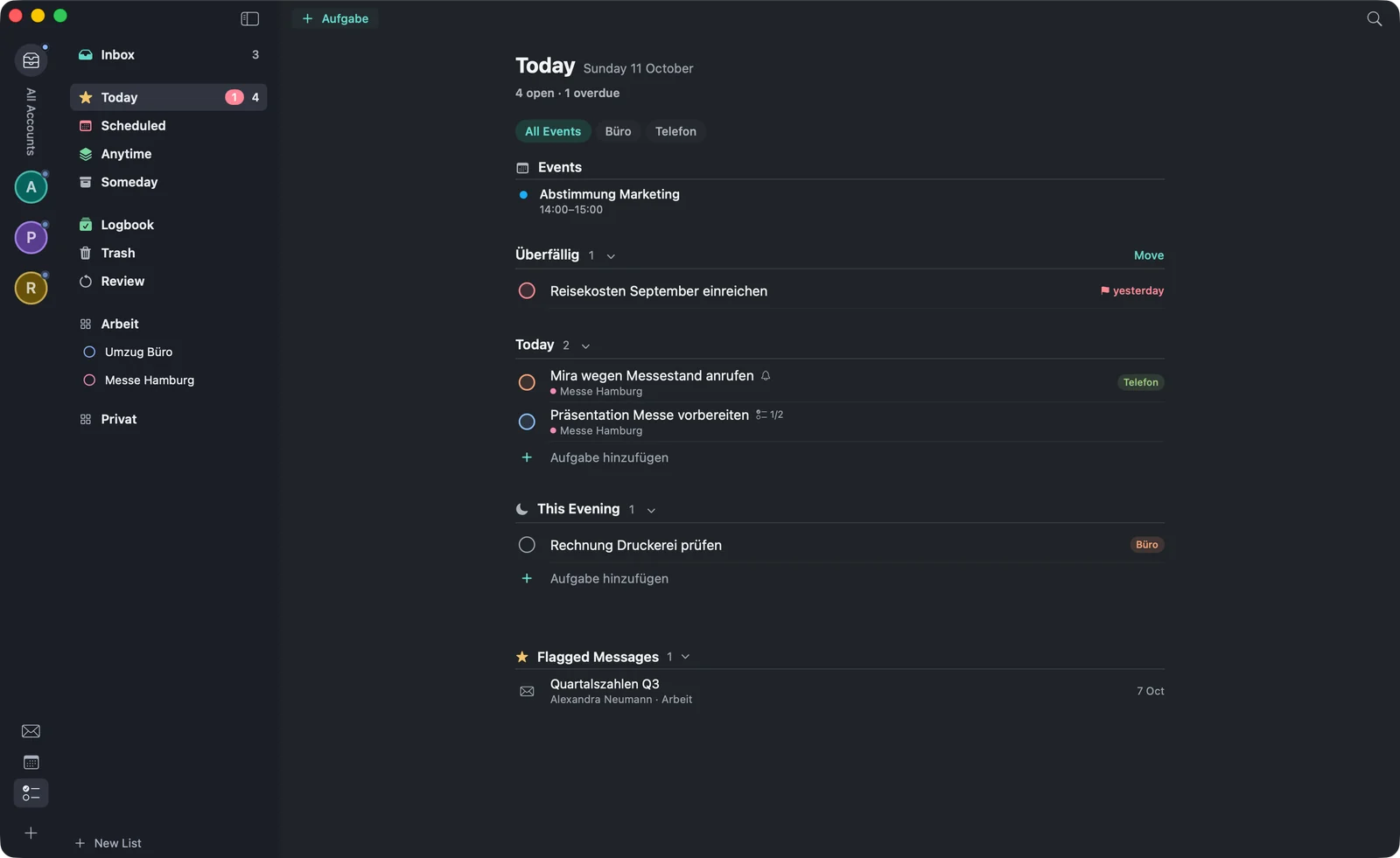
“Today” shows the day’s at the top, then (“Overdue”), the tasks for and for , and finally your . You push overdue items on all at once with . Above the list you filter by tags.
Creating and editing a task
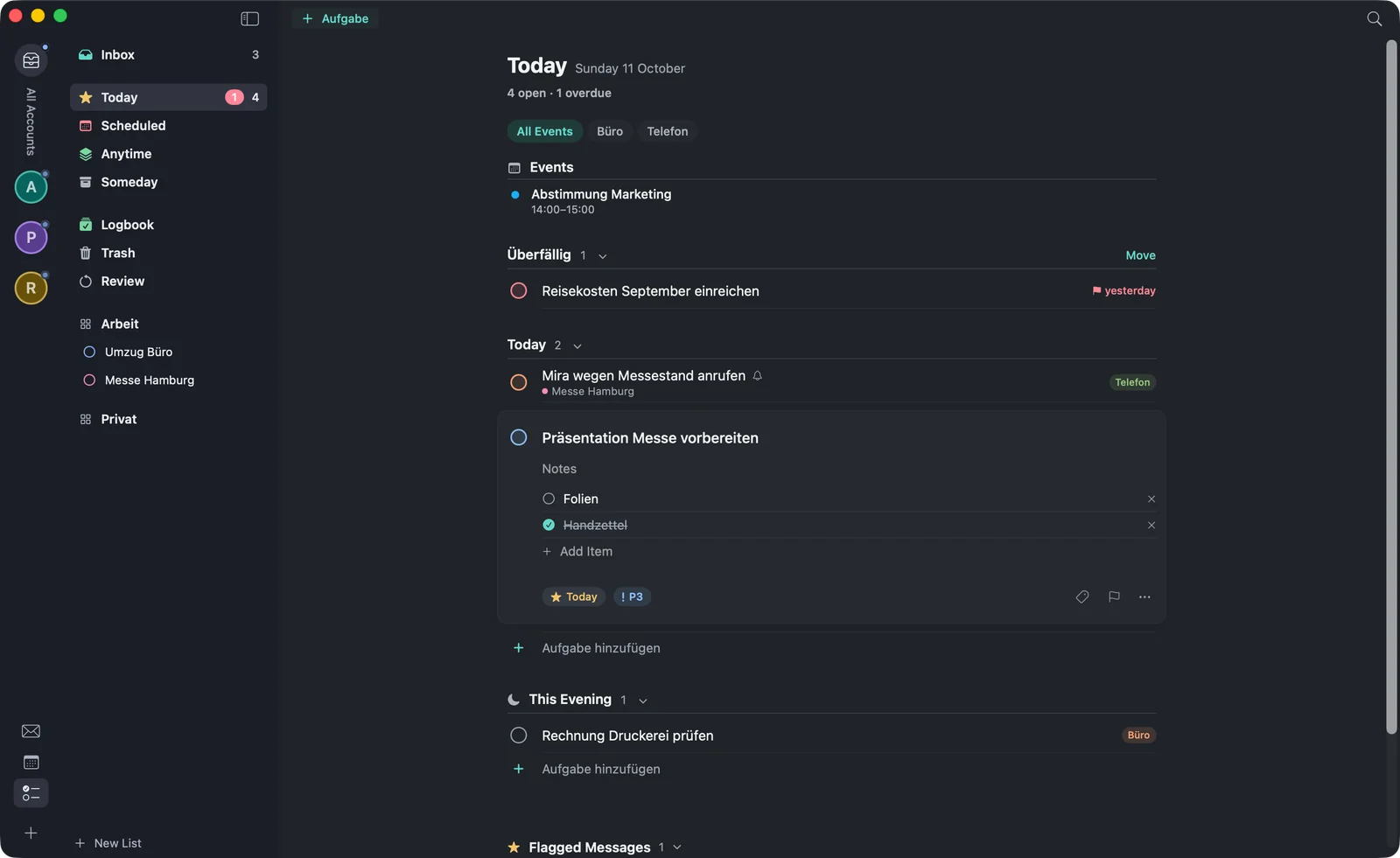
⌘N or (“Task”) at the top left creates a task in the list being shown; (“Add task”) below a group creates it right there. A double-click opens a task as a card with notes, checklist, when, deadline, tags and priority.
| What | Shortcut |
|---|---|
| When … (choose a day) | ⌘S |
| Today · This Evening | ⌘T · ⌘E |
| Anytime · Someday | ⌘R · ⌘O |
| Deadline … | ⇧⌘D |
| Tags … | ⇧⌘T |
| Checklist | ⇧⌘C |
| Move … (to another list) | ⇧⌘M |
| Duplicate | ⌘D |
| Move Up · Move Down | ⌘↑ · ⌘↓ |
| Done · Cancel | ⌘K · ⌥⌘K |
- When and deadline are two different things: When is the day you want to deal with it — then the task appears in “Today”. The deadline is the day it has to be done.
- Priority 1 to 4 is set in the task’s context menu, also with the keys 1 to 4.
- Reminder: warfta sends a notification from which you can complete the task right away or postpone it with .
- Repeat: daily, weekly, monthly or yearly.
Areas and projects
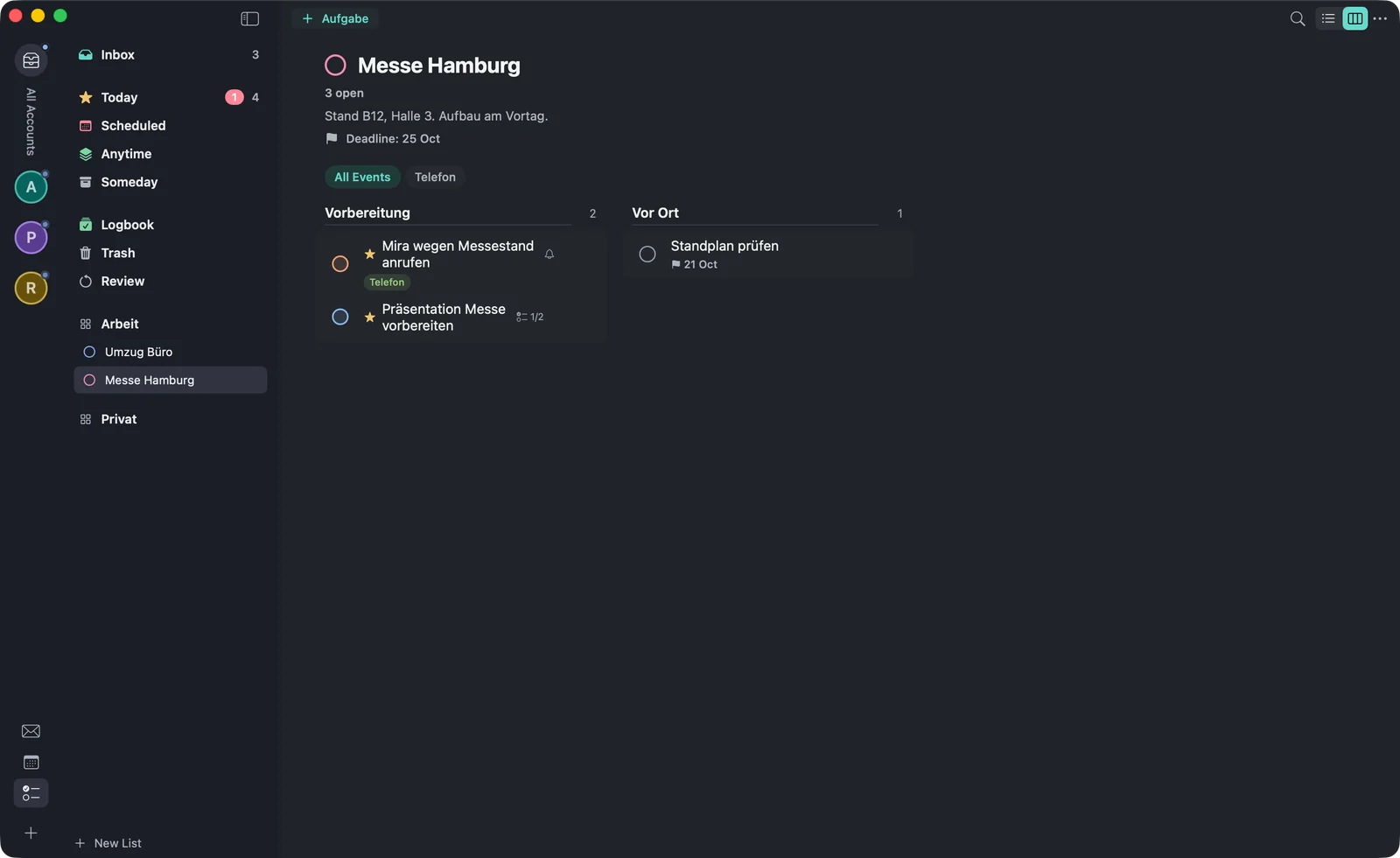
With at the bottom of the sidebar you create a or a . Areas like “Work” and “Personal” organise your projects. A project has a colour, notes, a deadline and headings (⇧⌘N) that divide it into sections. At the top right you switch between (“As list”) and (“As board”). When everything is done, you complete the project.
Quick entry from any app
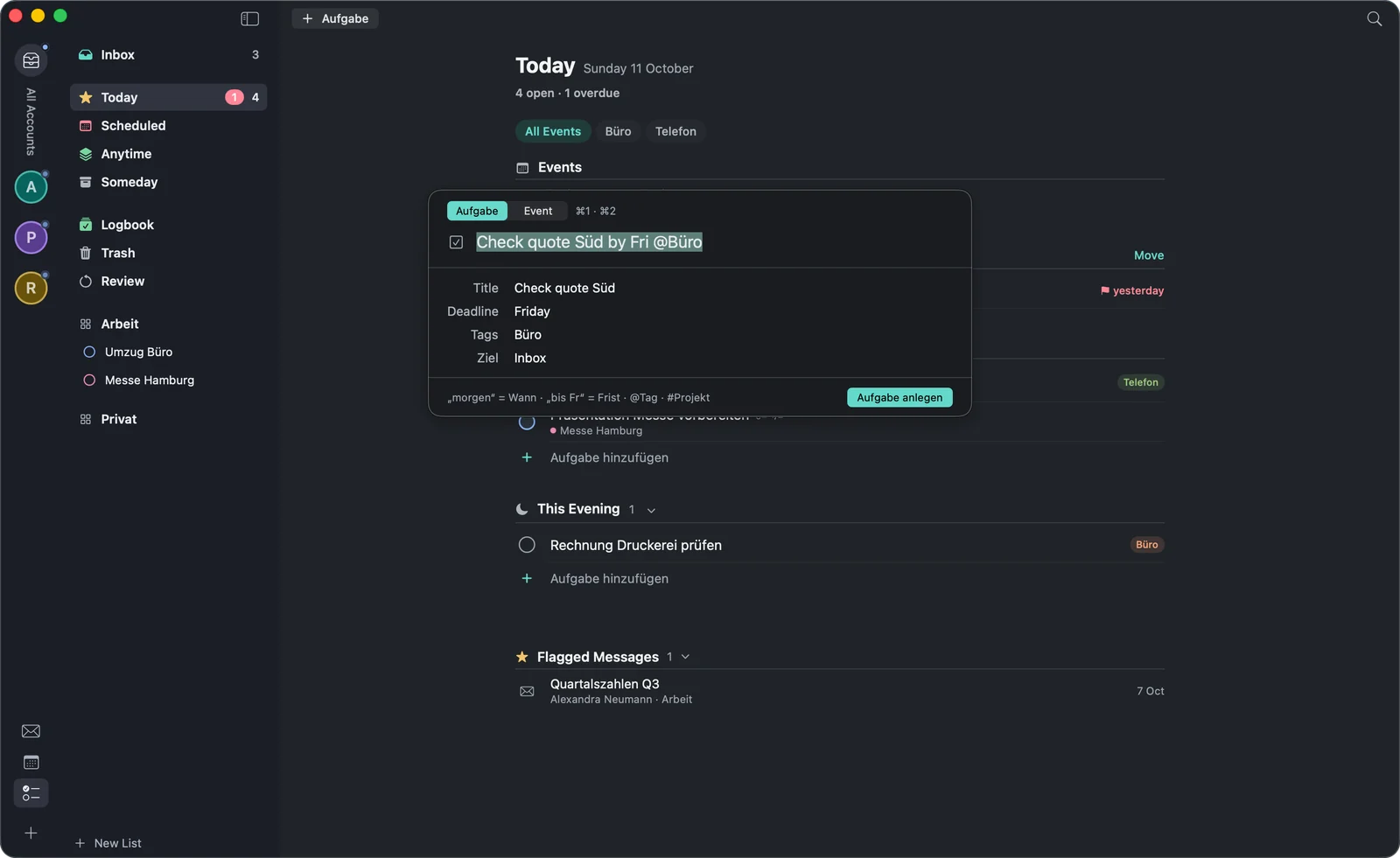
⌃⌥⌘Space opens a small window from anywhere in which you note a task or an event — ⌘1 for a task, ⌘2 for an event, ↩ creates it, esc closes the window. warfta understands a few words, in English and German:
- “tomorrow”, “on Fri” or “next week” sets the When,
- “by Fri” sets the deadline,
- @Tag assigns a tag, #Project puts the task into that project,
- “event Fri 14–15” becomes an event on Friday from 2 to 3 pm; a single time such as “3pm” works too.
You change the shortcut in the settings under ; you can also turn quick entry off there.
Tasks from mail
- (⌥⌘T) opens a small sheet with the subject as title; if warfta recognises a date in the text, it suggests a due date. ↩ creates the task, (⌘↩) also clears the mail out of the inbox. With the task shows all mails of the conversation, including later replies.
- (⌥⇧⌘T) on a sent mail creates a task in “Anytime” with the “Waiting” tag and the recipient — so you don’t forget to follow up.
- The mail stays attached to the task: the card lists the , and a click opens them. With (⌥⌘L) you attach a mail to an existing task.
- Mails you flag appear in “Today” under “Flagged Messages”.
- You can also drag links from Apple Mail onto the task list.
Weekly review
takes you through the week step by step: empty the inbox, go through flagged mails, look at the events of the last seven and the next fourteen days, follow up on “Waiting”, go through projects and check “Someday”.
Backing up and restoring
(“Back up tasks”) writes all tasks, projects and areas to a file, (“Restore tasks”) brings them back. In the settings under you turn on (“Back up tasks daily”) and choose a folder; warfta keeps the last 14 backups there.
Syncing via iCloud In development
Syncing your tasks between several Macs via iCloud is in development. Until then your tasks live on the Mac where you create them — with the backup above you can take them with you.