
Settings and data
All of warfta’s settings, where your data lives, and what connects warfta with the Mac: widget, Shortcuts and Spotlight.
Last updated: 11 October 2026
You open the settings with ⌘, or via . On the left are the pages , , , , and . Changes apply immediately.
General
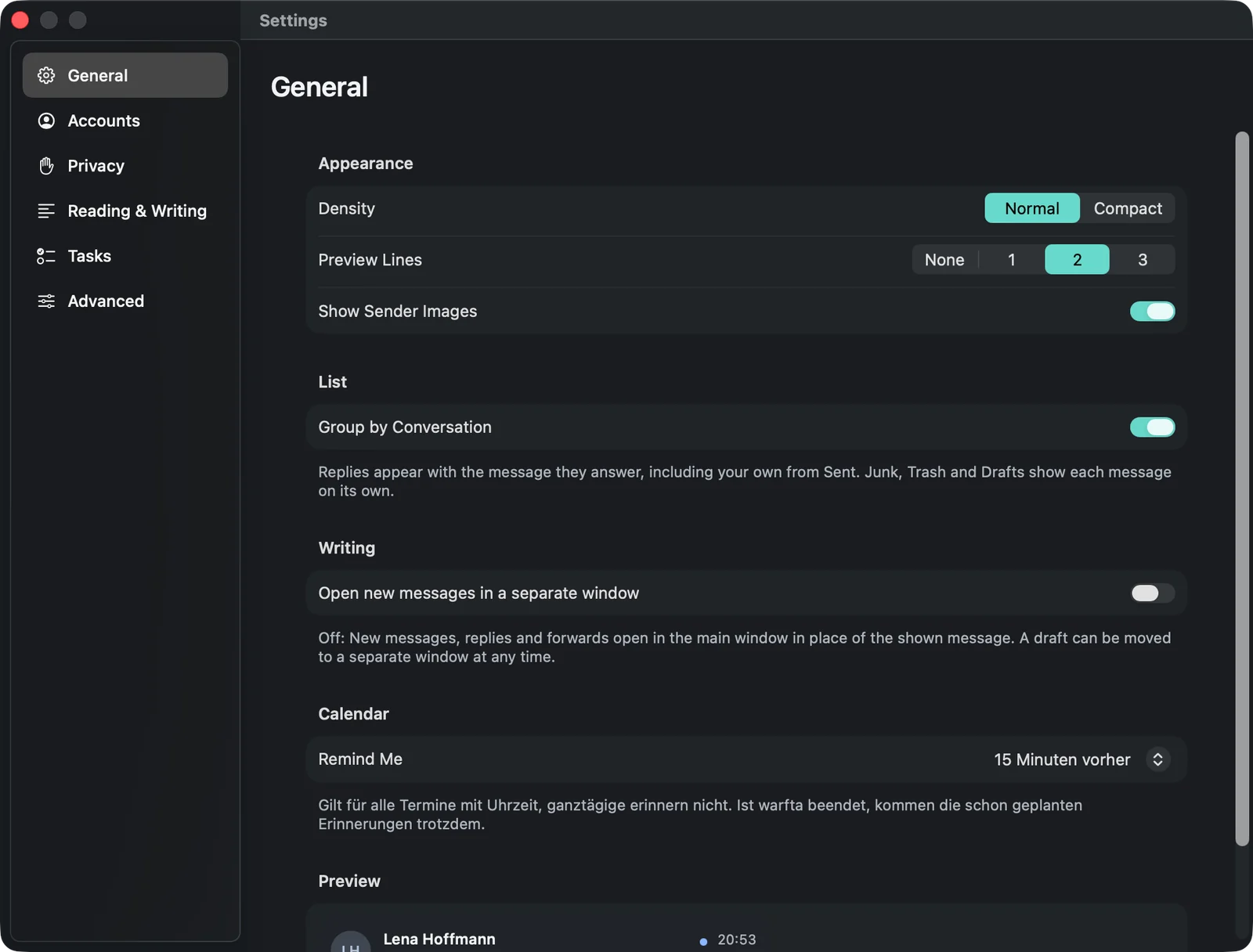
| Setting | Effect | Default |
|---|---|---|
| Density | Normal or compact message list | Normal |
| Preview Lines | None, 1, 2 or 3 lines of text per mail | 2 |
| Show Sender Images | Pictures or initials next to the mails | on |
| Group by Conversation | Replies appear with their mail | on |
| Open new messages in a separate window | Write in a separate window instead of the main window | off |
| Remind Me | Notification before events that have a time | 15 minutes before |
Accounts
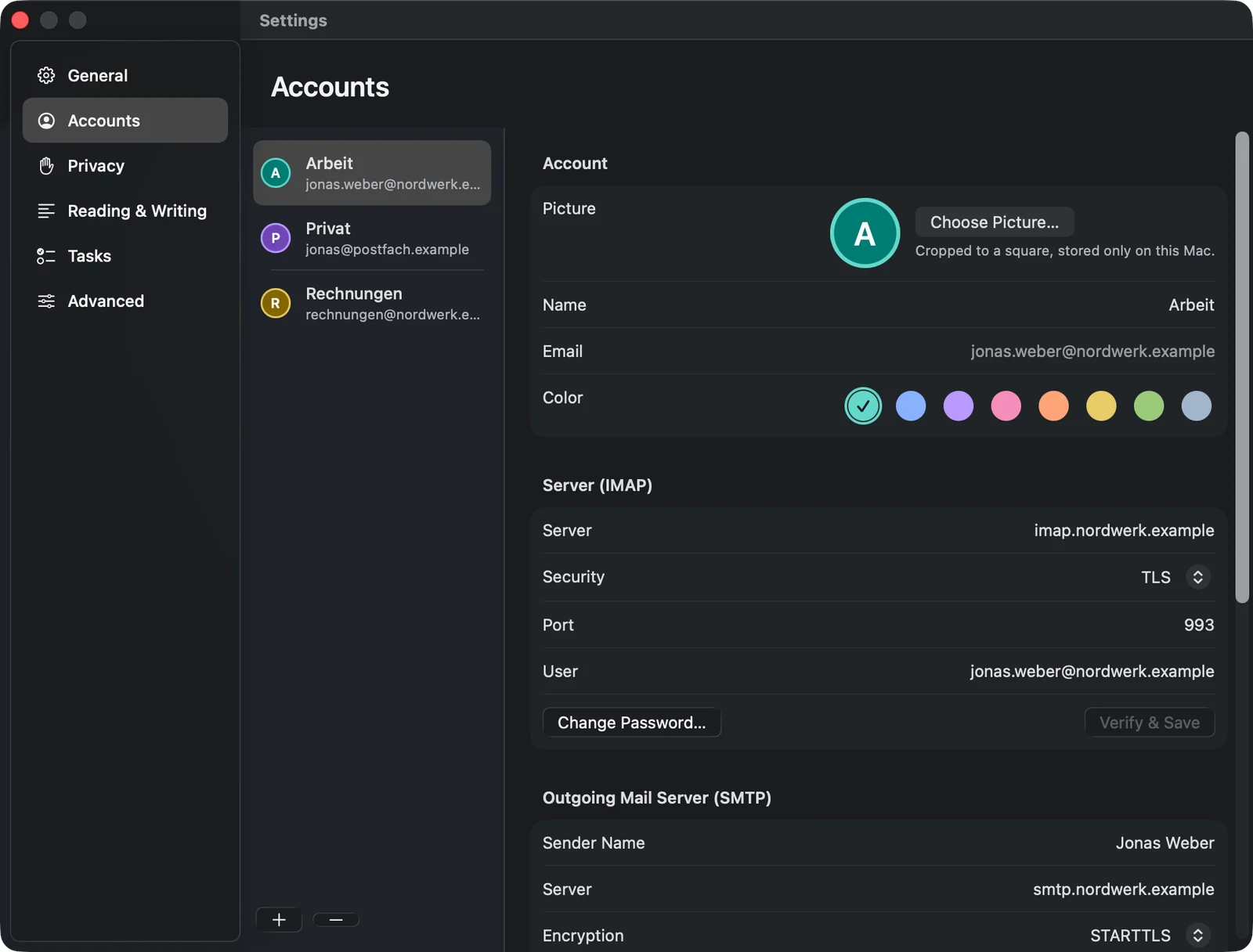
On the left your accounts, on the right the details of the selected account: picture and colour, name, email, the server with or , the outgoing server with the sender name, the calendar, S/MIME and — for Google Workspace and Microsoft 365 — profile photos from the company directory. With “+” and “−” at the bottom you add or remove accounts.
If you remove an account, warfta deletes all of that account’s data on your Mac. With Google and Microsoft, warfta’s permission remains until you revoke it there — the links for this are shown with the account and on the Support page.
Privacy
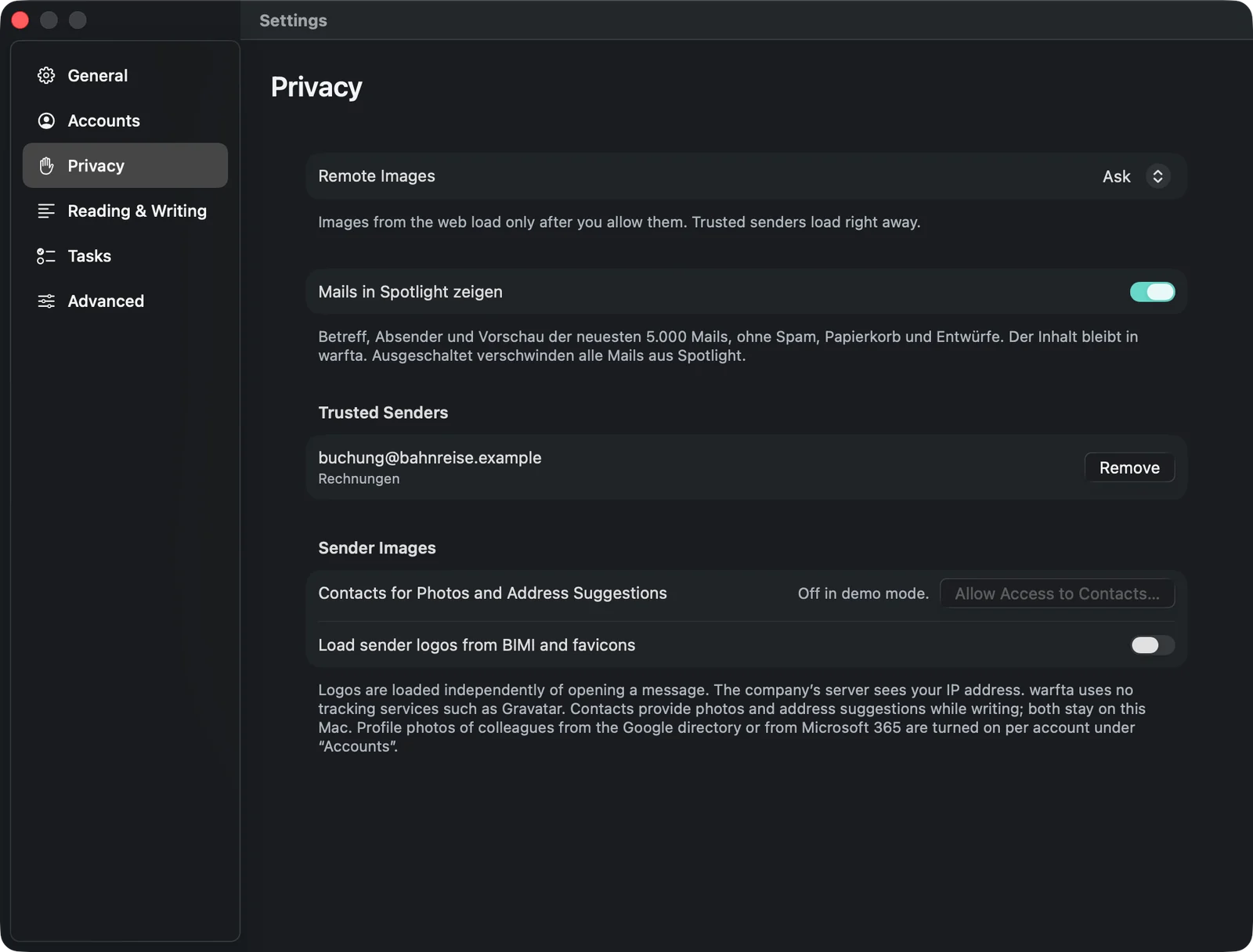
- : (default) or . Below that, the senders you trust.
- (“Show mails in Spotlight”): subject, sender and preview of the latest 5,000 mails, excluding junk, trash and drafts.
- : only if you allow warfta to access your contacts.
- , off by default. If you load logos, the server of the respective company sees your IP address. warfta doesn’t use services such as Gravatar.
Reading & Writing
Three pages: with Apple Intelligence, and . Described in the chapters Writing and Apple Intelligence.
Tasks
- : (“Capture tasks and events from any app”) and the shortcut — ⌃⌥⌘Space, ⇧⌘Space, ⌃Space or ⌃⌥Space.
- : In development
- (“Backup”): (“Back up tasks daily”), the folder and (“Back up now”). A folder in iCloud Drive keeps the backups outside the Mac as well.
- : . When off, reminders show only the title, on the lock screen too.
Advanced
- removes stored logos and pictures; mails and drafts stay.
- : warfta keeps at most 512 MB of downloaded attachments and loads them again from the server when needed.
- : warfta writes to the system log (subsystem “eu.warfta.mac”), without mail content, addresses or passwords. Useful if we ask you for it when tracking down a bug.
Where your data lives
warfta has no server of its own. Your mail travels directly between your Mac and your provider. Stored on your Mac are:
- Mails, events and tasks in a database in the app’s protected area (macOS sandbox).
- Passwords and sign-ins in your Mac’s keychain.
- Images and downloaded attachments in a cache you can clear under .
What warfta loads over the network can be turned off or happens only at your request: remote images, sender logos, profile photos from company directories. The full version is in the app privacy policy.
“Today” widget
The widget shows your tasks from “Today”, in the medium size also your next events. You check off tasks right in the widget. You add it like any widget: right-click the desktop → → warfta.
Shortcuts and Spotlight
The Shortcuts app offers four actions from warfta: (“Create task”), (“Today’s tasks”), (“Upcoming events”) and (“Count unread mails”). Use them to build your own automations or ask Siri. In Spotlight you find tasks and projects as well as mails.
Links to mails and tasks
warfta links (warfta://message/… and warfta://task/…) open the mail or
task in warfta. They only display it and never trigger an action.