
Getting started
What your Mac needs, how to set up your accounts and how warfta’s window is laid out.
Last updated: 11 October 2026
System requirements
- macOS 26 Tahoe or later, on Macs with Apple silicon and with Intel processors.
- For the Apple Intelligence features, a Mac that supports Apple Intelligence, with Apple Intelligence turned on. Without it, warfta runs fully, just without summaries and reply suggestions.
- A mailbox with Google, Microsoft, iCloud or a provider with IMAP.
Adding your first account
On first launch, warfta is empty: “All your mailboxes in one place”. Click — later you’ll find it as “+” at the very bottom of the account column and in the settings under . In the dialog, you first choose the account type.
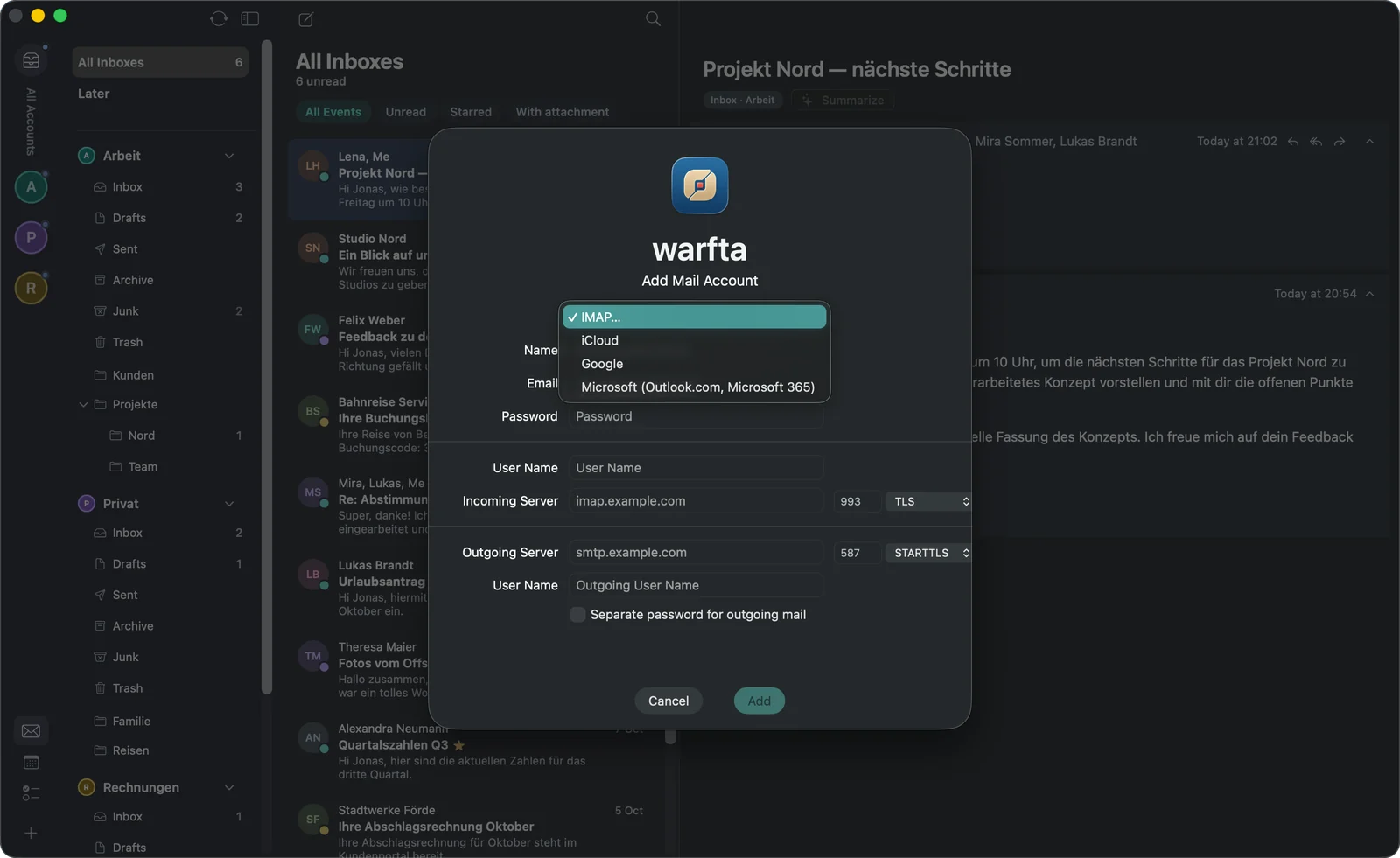
Google (Gmail and Google Workspace)
Choose and then . Sign-in happens in a window from Google — warfta never sees your password. Google asks whether warfta may read, organise and send your mail. Confirm, and warfta starts syncing.
Microsoft (Outlook.com and Microsoft 365)
Choose and . Here, too, you sign in directly with Microsoft.
iCloud
Choose . Apple’s servers are filled in already; you enter your name, email and an app-specific password. You create an app-specific password at (Sign-In and Security → App-Specific Passwords); the link is in the dialog. If you use iCloud with a custom domain, also enter your iCloud address. With your iCloud calendar comes along right away.
Any other mailbox (IMAP)
Choose and enter name, email, password and user name. Below that are the and the , each with port and encryption (TLS or STARTTLS). For iCloud, Fastmail, mailbox.org and Posteo warfta fills in the servers itself; for other addresses it tries to recognise the provider. If outgoing mail needs its own password, turn on .
With , warfta checks the sign-in (“Checking sign-in …”). warfta doesn’t allow unencrypted connections.
The main window
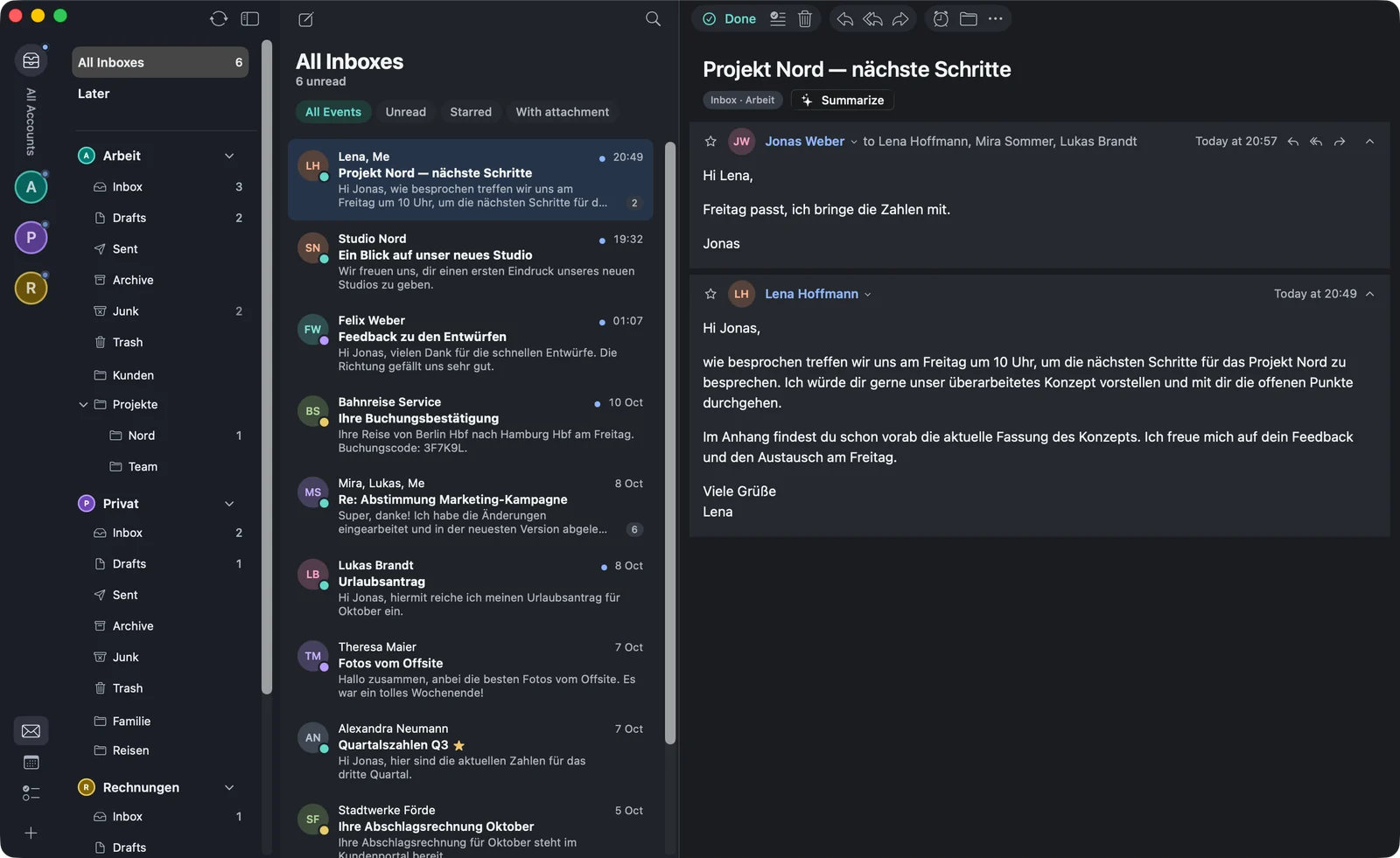
The main window has three columns:
- Sidebar: on the far left the account column with “All” and a picture per account; a dot on the picture shows unread mail. At the bottom of the account column are the three symbols for , and , below them the “+”. Next to it the folders: , and for each account Inbox, Drafts, Sent, Trash and all other folders or labels. Right-clicking an account picture takes you to the account settings.
- Message list: the mails of the selected folder, newest first, with sender picture and preview.
- Reading pane: the selected mail or the whole conversation.
⌃⌘S collapses the sidebar into a narrow column of symbols; you drag its width with the mouse. ⌥⌘N opens a second main window.
Switching between mail, calendar and tasks
⌘1 shows Mail, ⌘2 the calendar and ⌘3 the tasks. The menus adapt: in the calendar the menu appears, with the tasks the menu. Some shortcuts such as ⌘N therefore do different things depending on the area — ⌘N is a new mail in Mail, a new event in the calendar and a new task in Tasks.
When warfta fetches new mail
While warfta is active, it checks for new mail every two minutes, in the background roughly every quarter of an hour. Where the server offers it, new mail is reported immediately. warfta also fetches mail when you activate the app, the Mac wakes up or the network comes back. To do it by hand, use ⇧⌘N ().