
Writing
New mails, replies and forwards, signatures, drafts and the outbox.
Last updated: 11 October 2026
A new mail
⌘N opens a new mail. To reply, press ⌘R, to reply all ⇧⌘R, to forward ⇧⌘F. warfta opens the compose view inside the main window, in place of the mail being shown. With you can pop it out at any time. If you always want a separate window, turn on in the settings under .
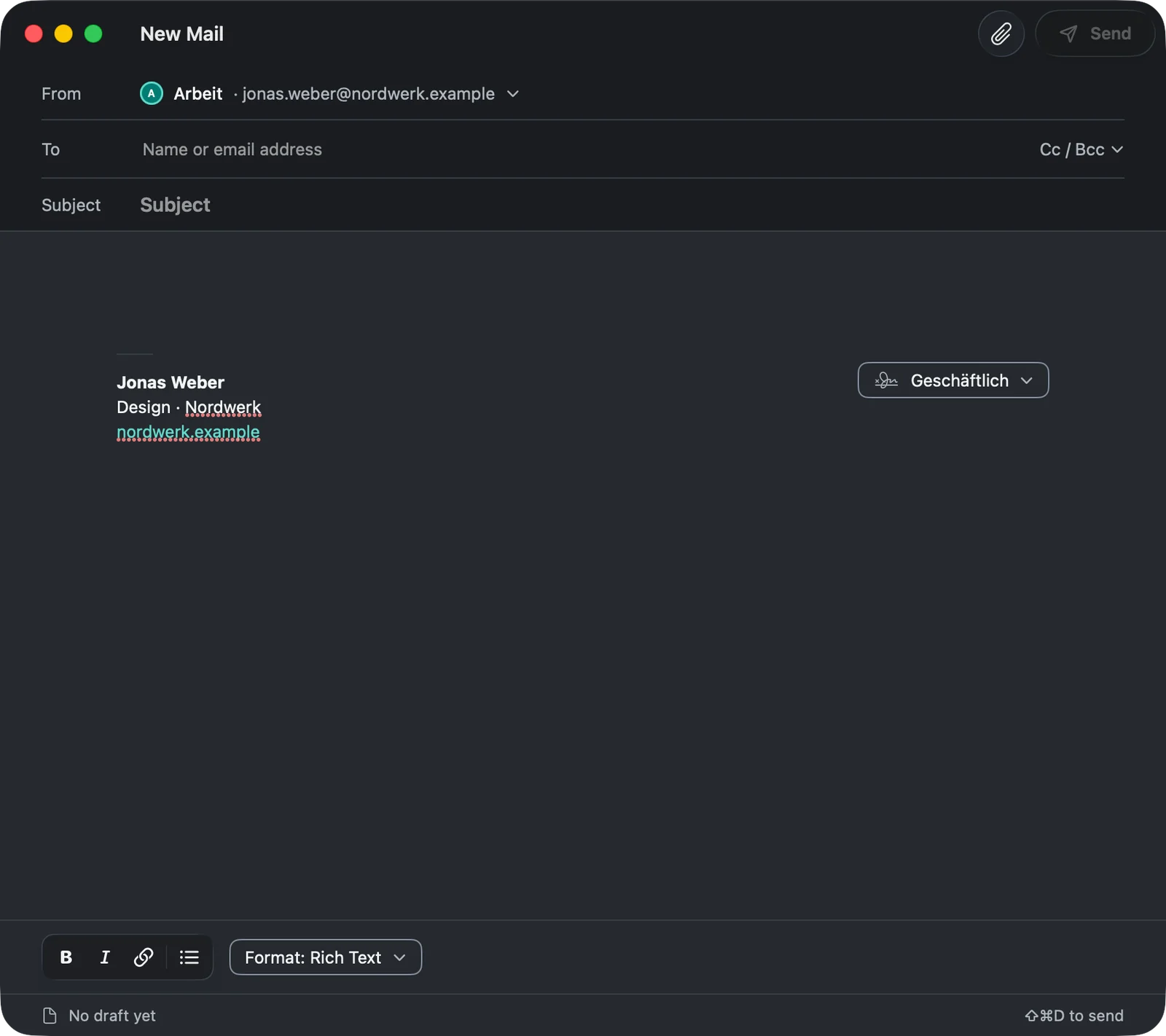
- From: if you have several accounts, you choose the sender here. The signature changes with it.
- To: warfta suggests addresses from your mails and — if you allow it — from your Mac’s contacts. Invalid addresses are marked in red. shows the additional fields.
- Format: allows ⌘B bold, ⌘I italic, ⌘K links and lists. sends plain text. You change quote levels with ⌘' and ⌥⌘'.
- Send: with the button at the top right or ⇧⌘D. Without a subject, warfta asks (“Send without a subject?”).
Attachments
Click the paper clip or press ⇧⌘A (). You can also simply drag files into the compose window. If a mail gets too large for your account, warfta tells you beforehand — attachments grow by about a third when sent.
Signatures
You create signatures in the settings under , as many per account as you like, with images, links and font sizes. Under you set which signature goes into new mails and which into replies and forwards.
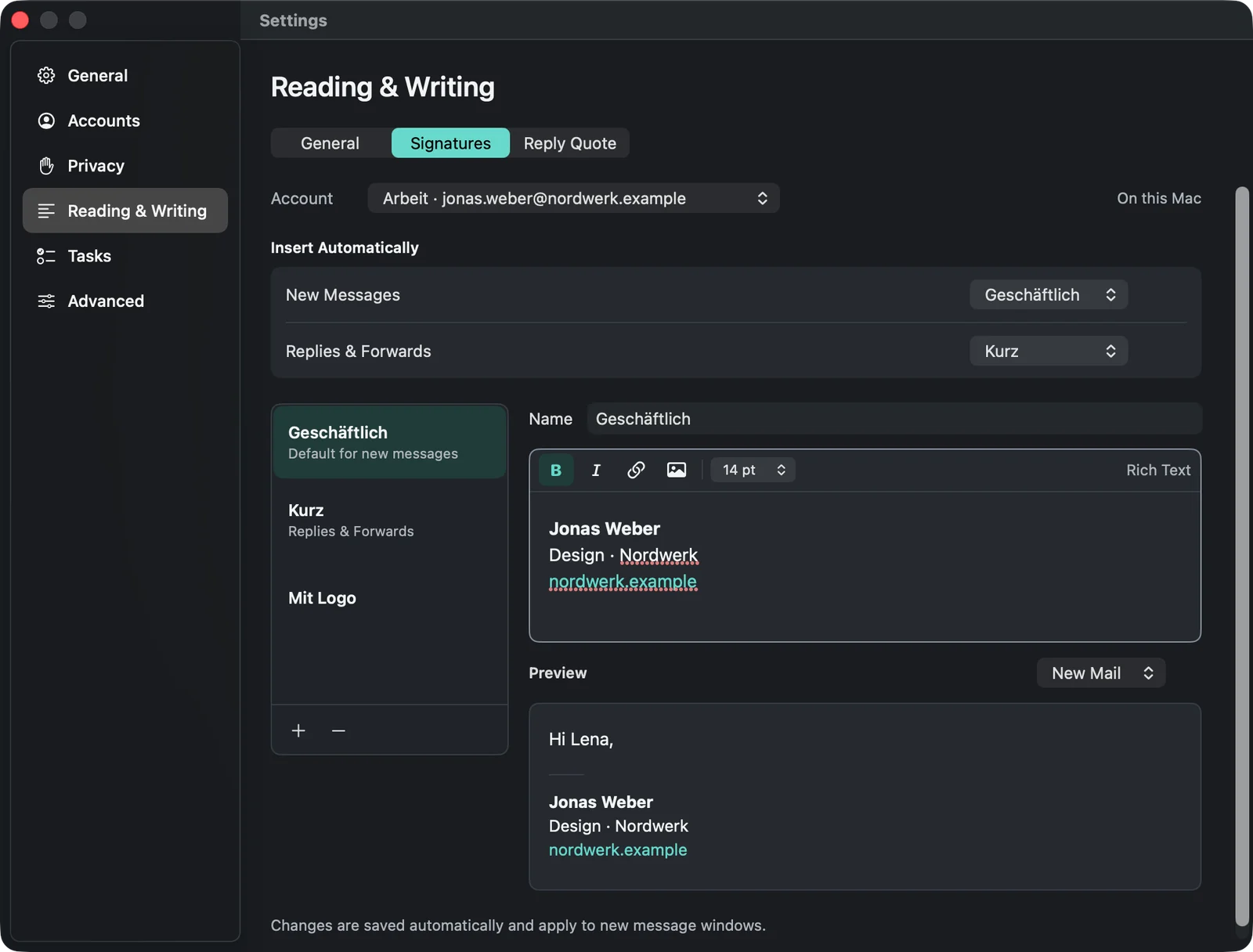
In the compose window there’s a menu to the right of the signature: there you switch the signature, choose or jump to .
What replies look like
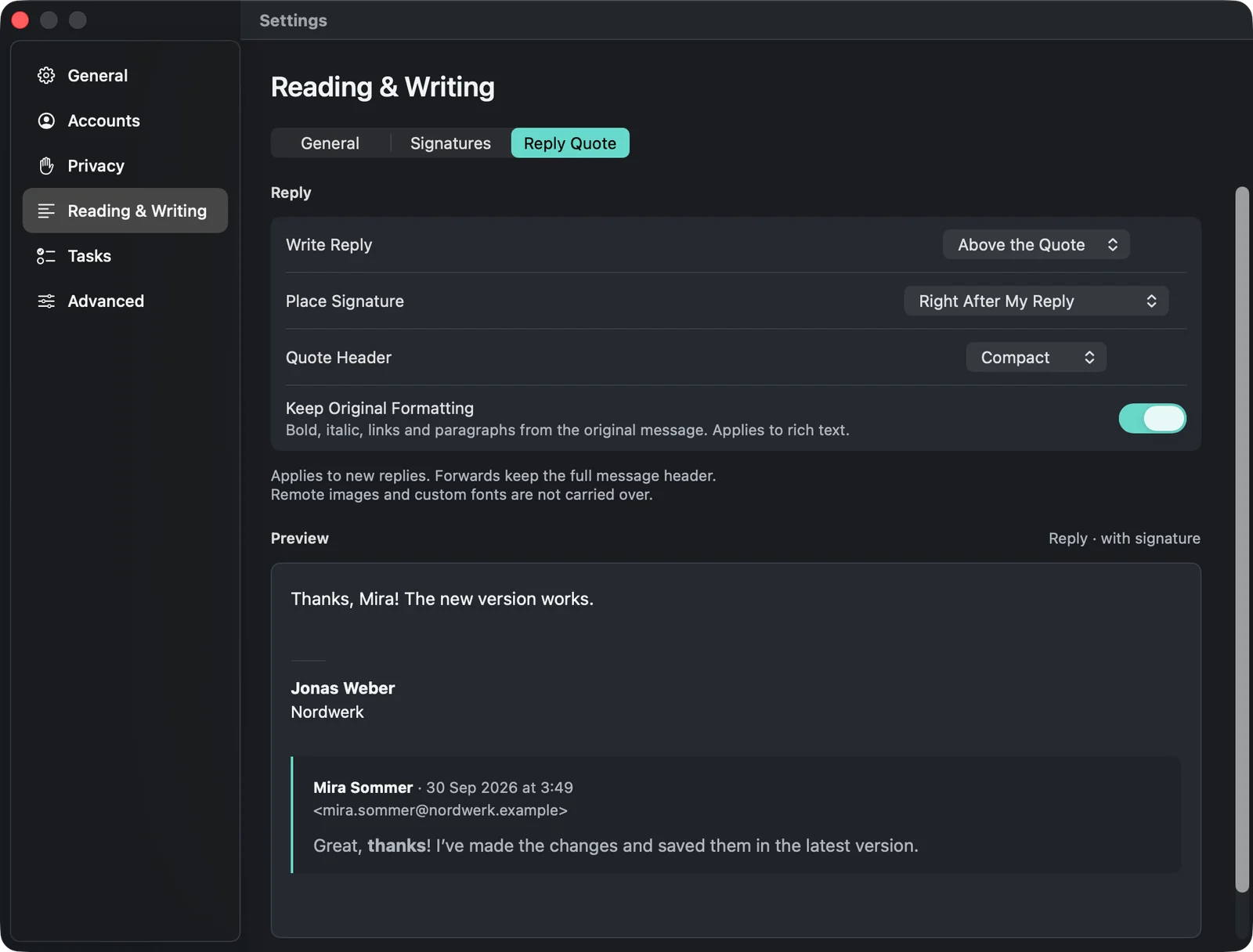
Under you decide whether you write or , where the signature goes and how detailed the quote header is (, or ). keeps the bold, italic, links and paragraphs of the original mail. A preview shows right away what the reply looks like.
Drafts
warfta saves while you write. At the bottom of the compose window it says where the draft is: “Draft saved · on this Mac” or “Draft saved · synced with account” — then it is also in your account’s drafts folder, and you’ll find it again in other mail programs. The other way round, warfta opens drafts you started elsewhere so you can keep writing. Bcc recipients stay only on your Mac.
You discard a draft with . If you quit warfta with compose windows open, it asks first.
Outbox and “Unsent”
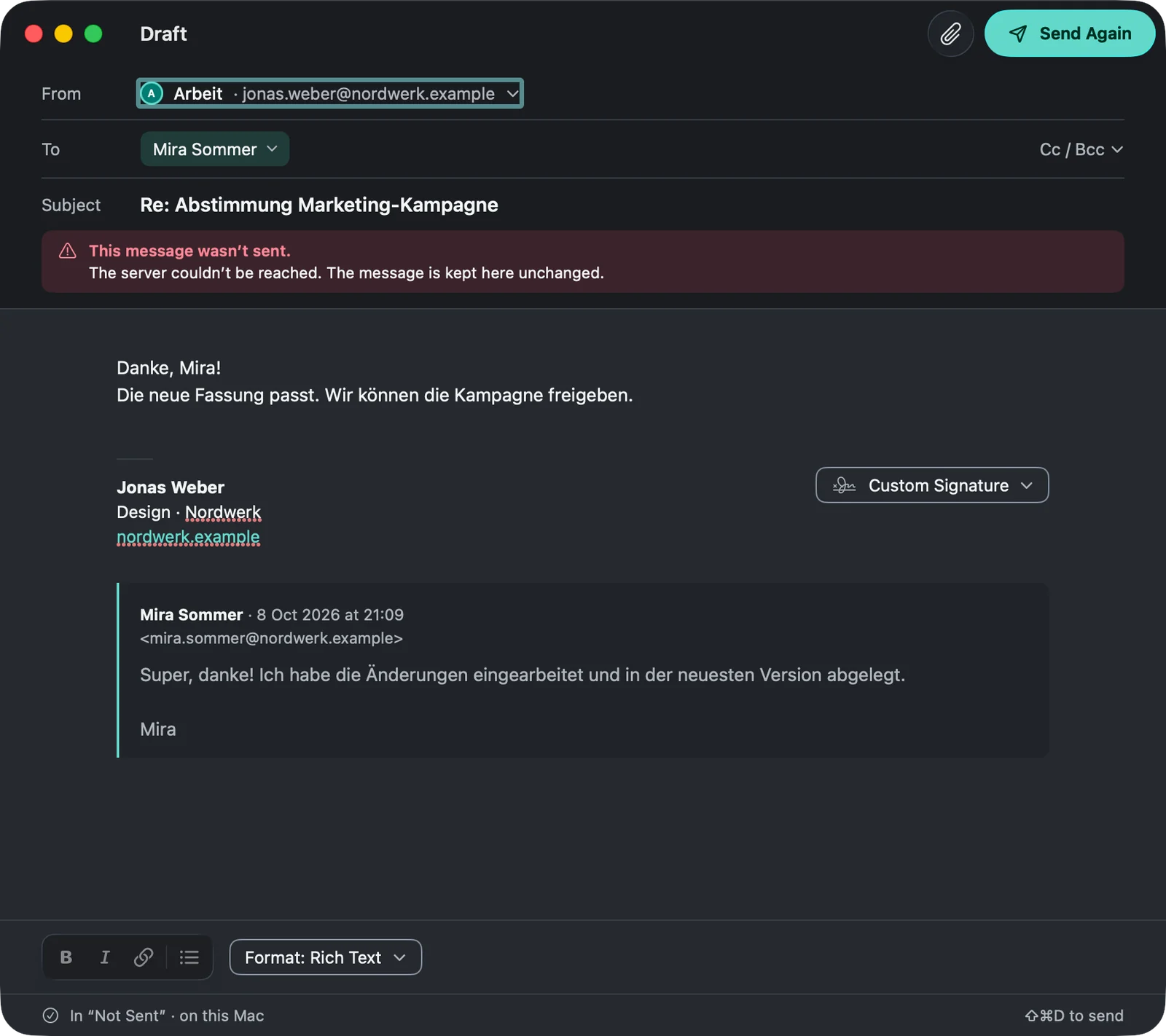
Sent mails go to the first. If there’s no connection, warfta waits and tries again (“Waiting for connection · next attempt …”). If the server rejects a mail, it ends up in . From there you send it again with , edit it first or delete it.
Signing and encrypting (S/MIME)
If you have an S/MIME certificate in your Mac’s keychain, you select it in the settings under , for the account, under (“Certificate”). With (“Sign new mails”) warfta signs every new mail. In the compose window you toggle (“Sign”) and (“Encrypt”) for the individual mail. Encrypting works if warfta knows a certificate for every recipient — for example from a signed mail they sent you.
Reply suggestions from Apple Intelligence are described in the chapter Apple Intelligence.