
Reading and organising mail
Inbox, conversations, images and attachments, archiving, Later, search and export.
Last updated: 11 October 2026
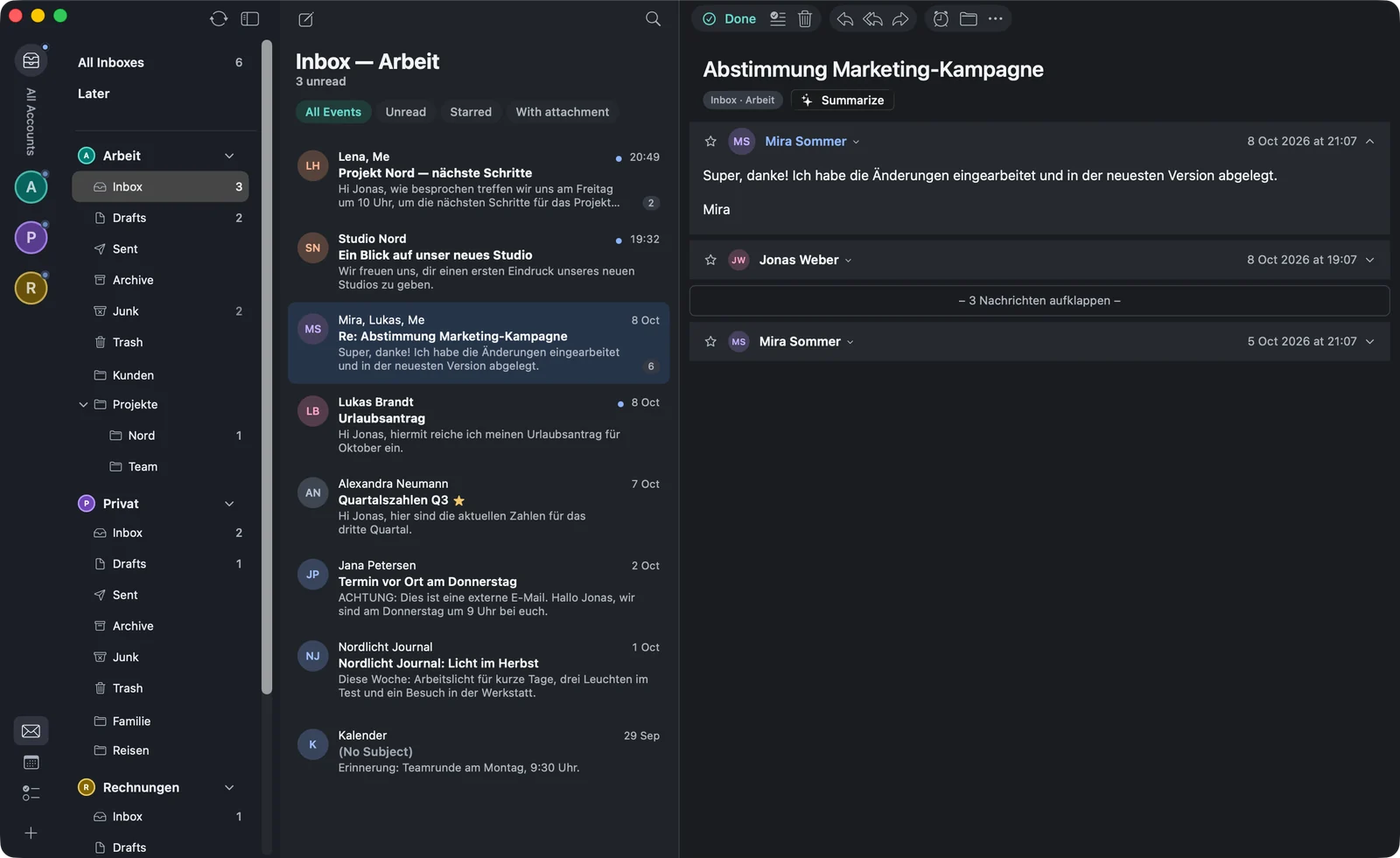
All Inboxes
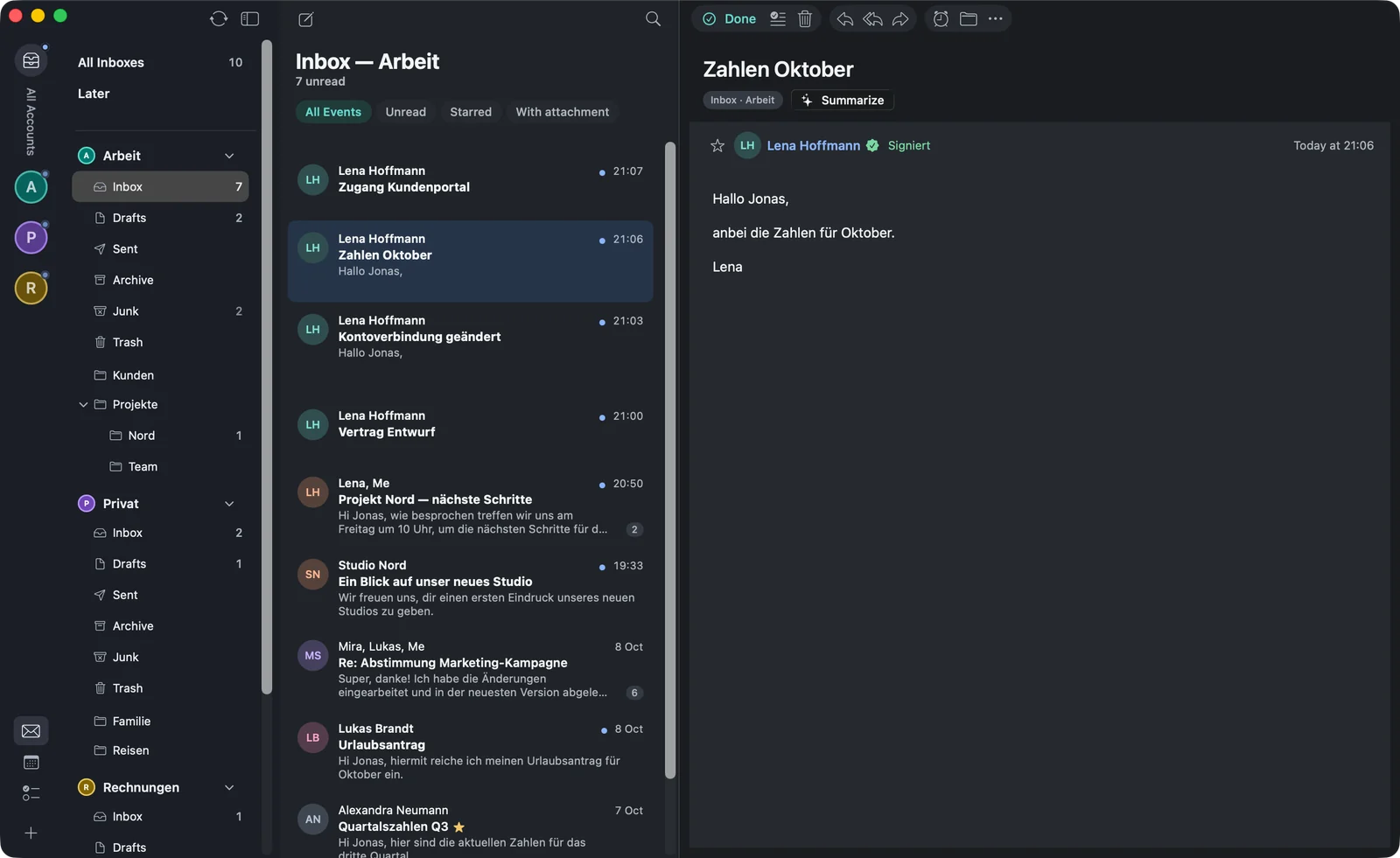
shows the new mail of all accounts in one list. To see just one account, click its picture in the account column on the left; “All” brings all accounts back. Above the list it says how many mails are unread — or “All read”.
The filters above the list narrow things down: “All”, , or . For Microsoft accounts, the inbox is split into and , as in Outlook.
Pinning folders
Folders you need often can be moved to the top with a right-click and (“Pin”). The same menu has (“Export as mbox”), (“Delete folder”) and, in the trash, .
Conversations
warfta groups mails with their replies into a conversation — including your own replies from “Sent”. In the reading pane the newest mail is at the top and older ones are collapsed; (“Expand messages”) shows them all. When you open a conversation, it counts as read. Prefer every mail on its own? In the settings under , turn off .
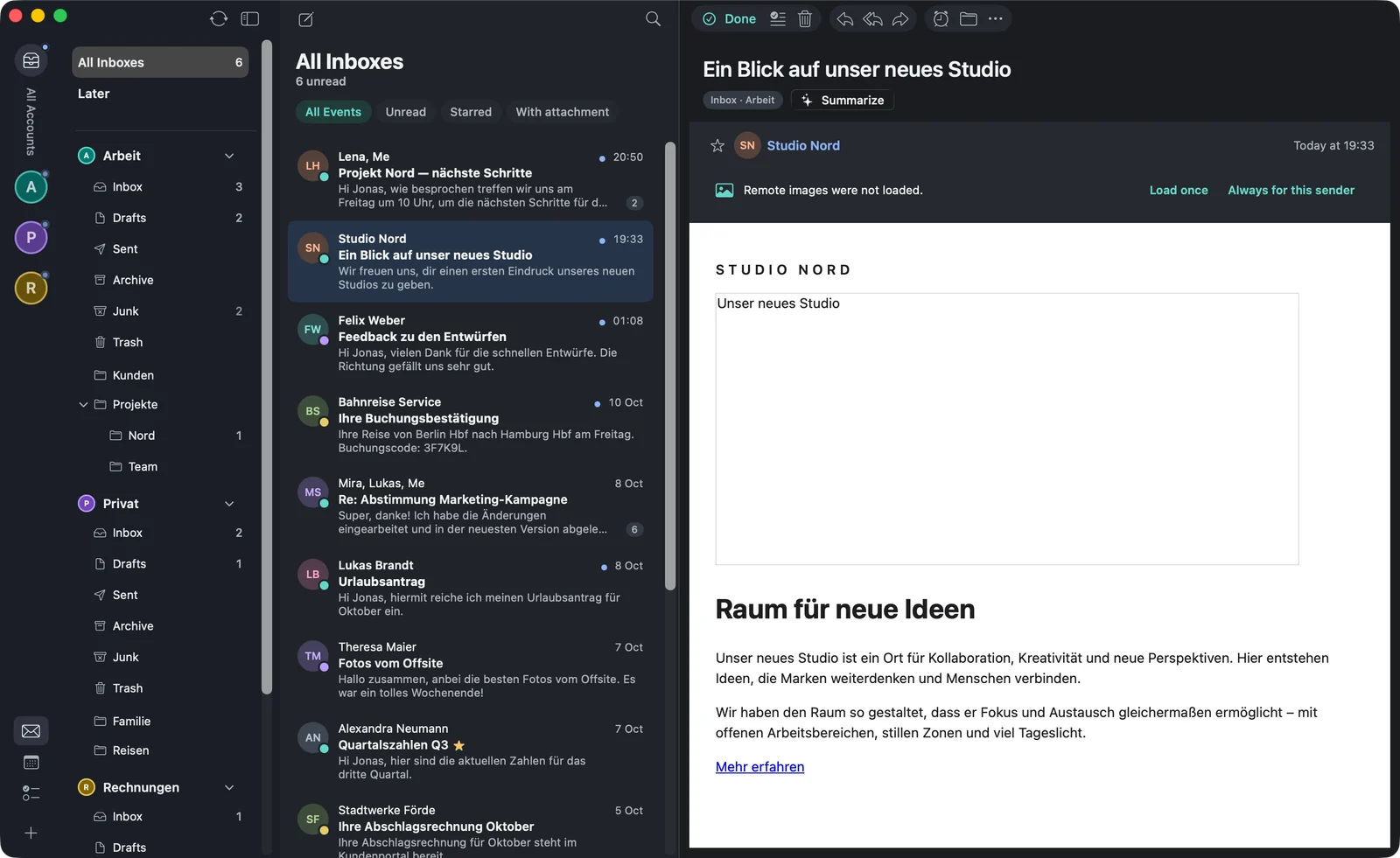
Remote images and suspicious mail
Many mails load images from the web — and learn when and where you open them. That’s why warfta doesn’t load such content by itself. Above the mail it then says “Remote images were not loaded.” With you fetch them for this mail, with for all mails from that sender. In the settings under you can choose or remove trusted senders again.
If a mail looks like a fraud attempt, warfta warns you: “Vorsicht: Diese Mail wirkt verdächtig.” (“Careful: this mail looks suspicious.”) That happens when the display name shows a different address from the actual sender, or a link shows something other than what it opens. The check runs on your Mac. In junk, images always stay blocked, and warfta asks before opening links and attachments.
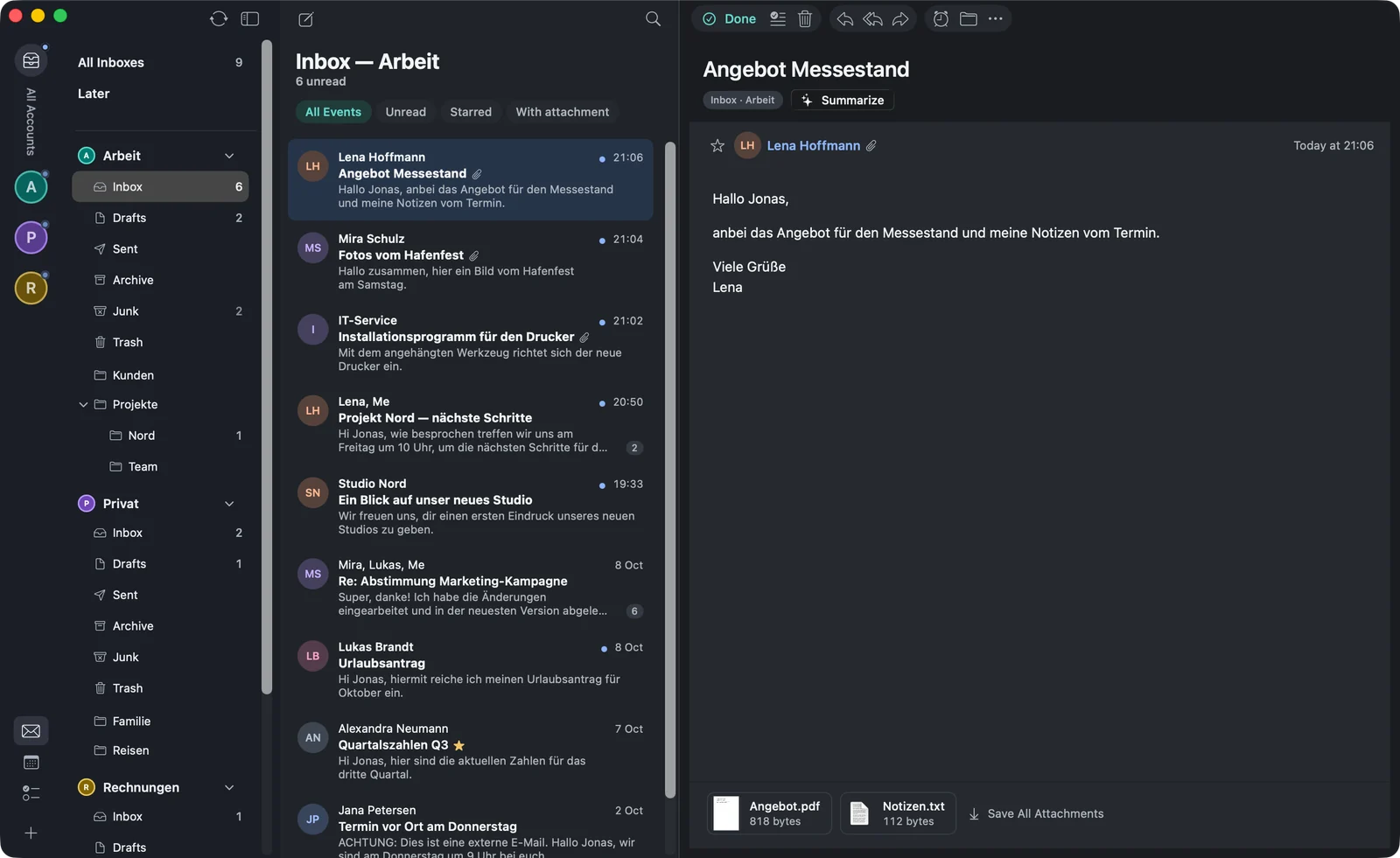
Attachments
Attachments appear as a compact row with thumbnails at the end of the mail, next to . A click or the space bar shows the attachment in Quick Look, a double-click opens it with the right app, and dragging puts it in the Finder. The context menu has , and . warfta loads attachments only when you need them; you clear the storage for them in the settings under .
Working with mails
The buttons at the top of the reading pane and the menu apply to the selected mail — or to all selected ones. Select several mails with ⇧- or ⌘-click, all of them with ⌘A.
| Command | Shortcut |
|---|---|
| Archive (“Done” in the reading pane) | ⌃⌘A |
| Delete — to the trash | ⌘⌫ · in the list ⌫ |
| Mark as Read or Mark as Unread | ⇧⌘U |
| Flag or Unflag | ⇧⌘L |
| Mark as Junk or Not Junk | ⇧⌘J |
| Move to Folder … | ⇧⌘M |
| Later … | ⌃⌘L |
| Undo | ⌘Z |
opens a folder picker with search and the folders you used last. You can also simply drag mails onto a folder in the sidebar. ↑ and ↓ move to the next mail, even when the focus is in the reading pane.
In the trash there are and , with a confirmation. You empty a whole folder via its context menu — warfta also deletes mails it has never loaded directly on the server.
Later
A mail you want to deal with later is moved out of the inbox with (⌃⌘L). You can choose , , , or . Until then it sits in the folder, which warfta creates in your account for this; at the chosen time it returns to the inbox.
Searching
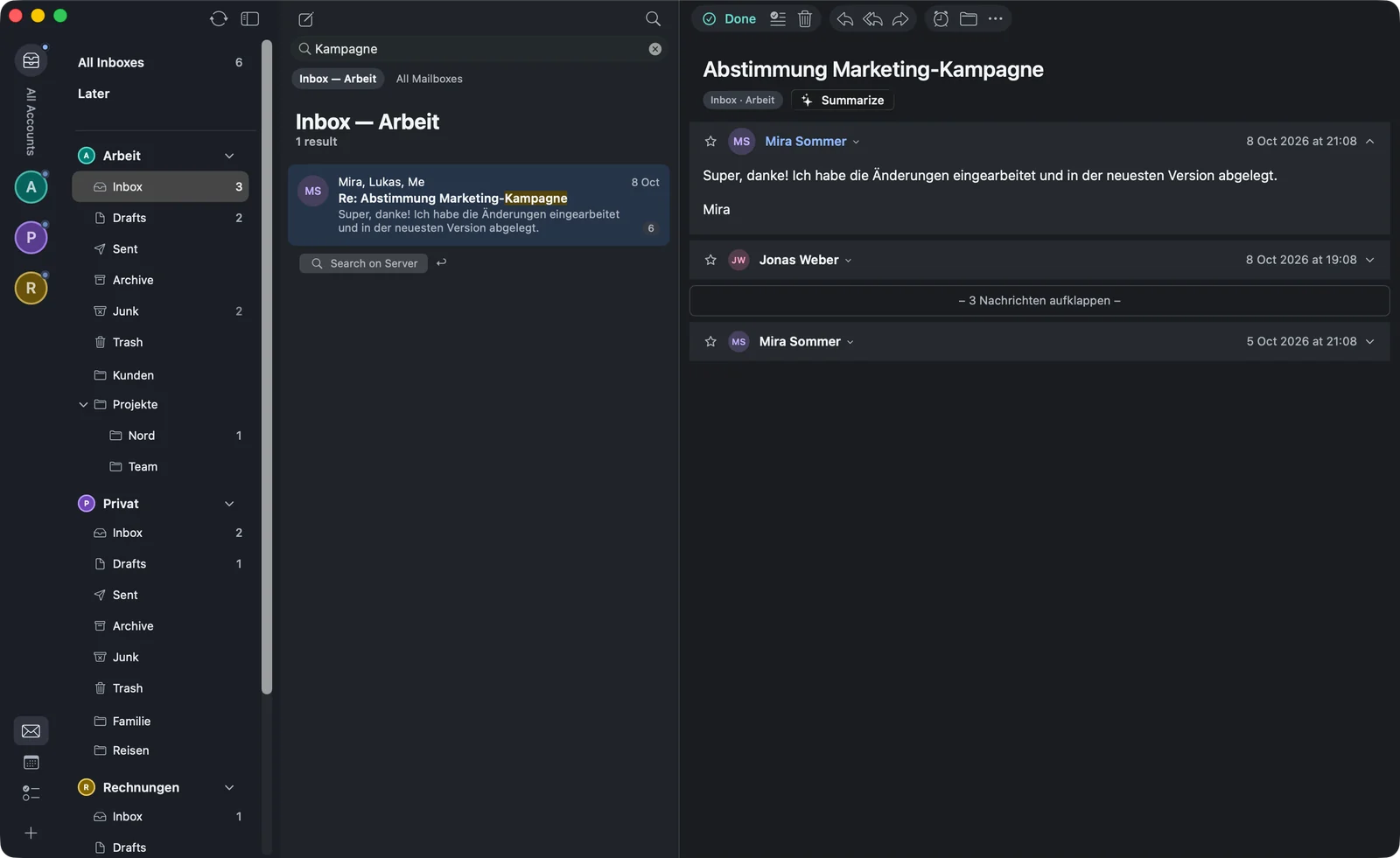
⌥⌘F opens . warfta first searches on your Mac — subject, sender, recipients and text — instantly as you type. At the top you choose whether to search only or .
If that isn’t enough, click : warfta then asks your
account at Google, Microsoft or via IMAP — so you also find older mails that aren’t on your Mac
yet. fetches more results. For the server search
you can narrow things down with from:, to:, cc: and subject:.
You also find the latest 5,000 mails in Spotlight, with subject, sender and preview. You can turn this off under → (“Show mails in Spotlight”).
Signed and encrypted mail (S/MIME)
If a mail is signed with S/MIME, warfta shows a seal in the header: (“Signed”), or a warning such as (“Signature invalid”) or (“Certificate not trusted”). Clicking the seal shows the certificate. warfta opens encrypted mails if your key is in the keychain; they carry a lock. Signing and encrypting yourself is described in the chapter Writing.
Saving and sharing mails
- (“Save mail as”, ⇧⌘S) saves the mail as an .eml file that any mail program can open.
- (“Export as mbox”) in a folder’s context menu saves the whole folder.
- puts a link to the mail on the clipboard — as a warfta link or as a link for Apple Mail. With warfta links you can link mails in notes, for example.
Turning a mail into a task or an event: see Tasks and Calendar.